Setting up calendar integration
Overview
Calendar integration connects your Google Calendar or Microsoft 365 / Outlook calendar to the platform, enabling availability checking, conflict detection, and automatic creation of meeting events when bookings are confirmed.
Only one calendar can be active at a time: either Google Calendar or Microsoft 365 / Outlook. Switching calendars later does not retroactively migrate existing meetings.
Prerequisites
Before setting up calendar integration, ensure you have:
- A Google Workspace / personal Google account or a Microsoft 365 / Outlook.com account
- Access to the My Meetings feature in your account
Connecting your calendar
You can connect your calendar during the initial setup wizard or at any time from Meeting settings.
Option A: During initial setup
When you first visit My Meetings, the setup wizard walks you through four steps. On step 2 (Connect calendar), select your calendar provider:
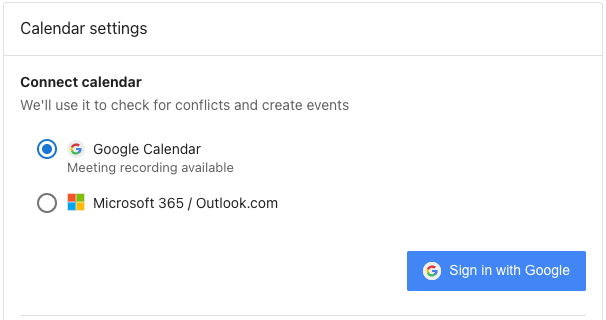
Google Calendar: ClickSign in with Googleand grant the required permissions.Microsoft 365 / Outlook.com: SelectMicrosoft 365 / Outlook.com, then clickSign in with Microsoftand grant the required permissions.
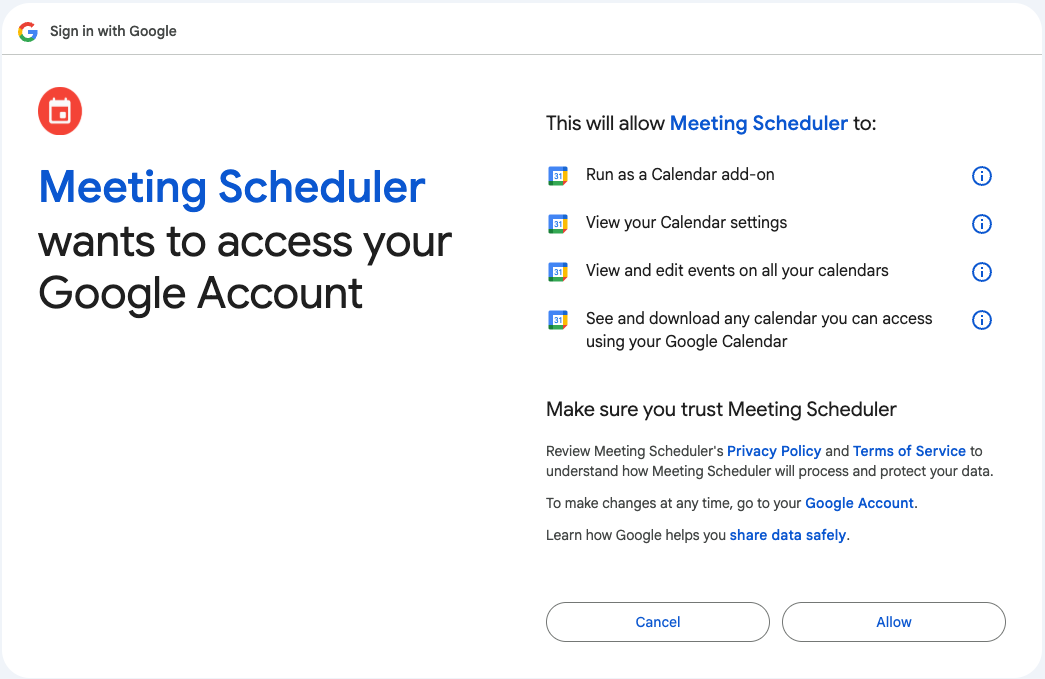
When you sign in with Google, the permission screen identifies the app as "Meeting Scheduler." This is expected: it's the name Google displays for this calendar integration, so there's no need to be concerned when you see it.
Option B: From Meeting settings
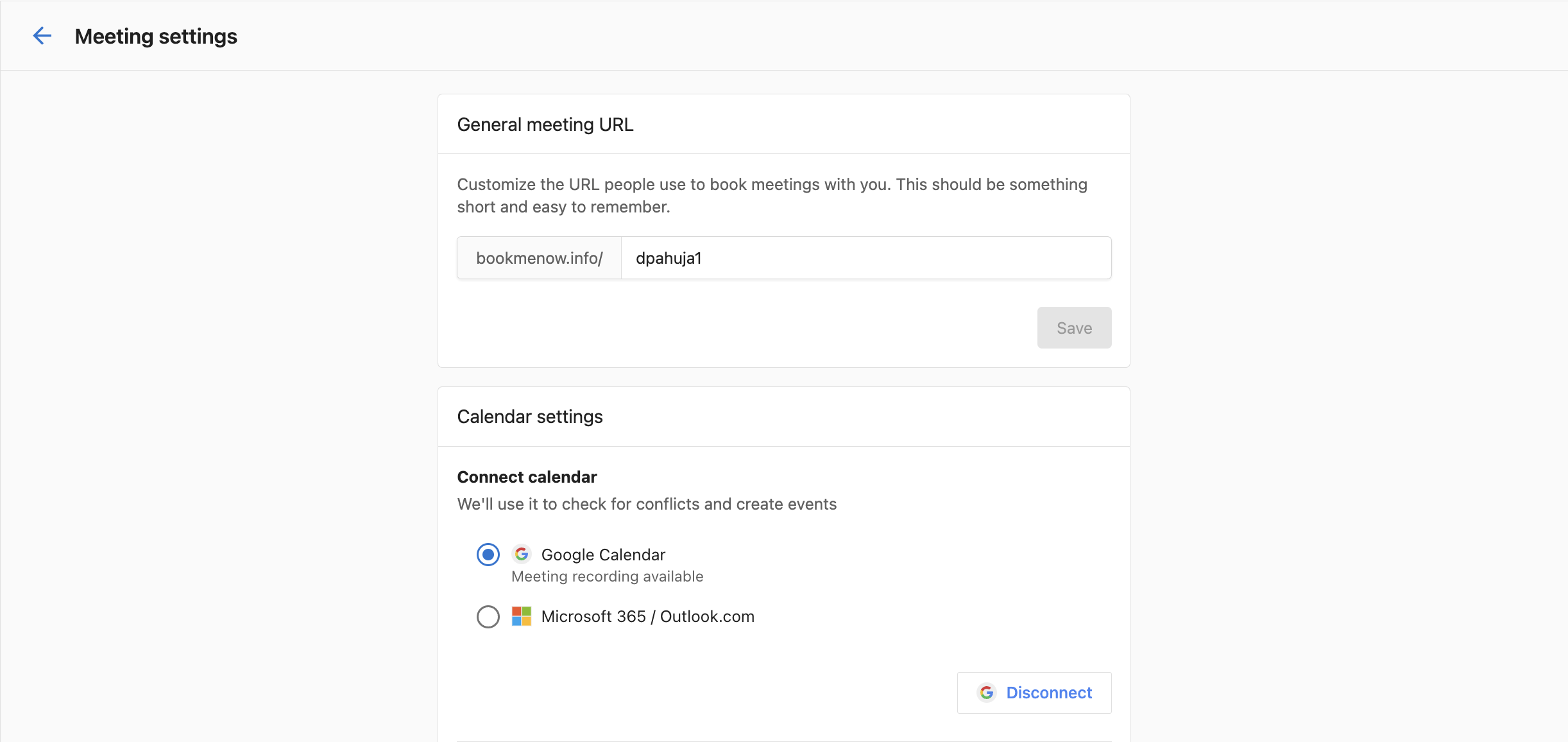
- Navigate to
My Meetingsfrom the main menu. - Click the three-dot menu in the top-right corner and select
Meeting settings. - Under
Calendar settings, select your calendar provider and sign in.
What happens after connection
Once your calendar is connected:
- Availability checking: The platform checks your calendar for conflicts when invitees try to book, so only genuinely free slots are shown.
- Automatic event creation: Confirmed bookings create calendar events in your connected calendar automatically.
- Notetaker scheduling: The platform automatically schedules notetakers for your upcoming meetings.
- Meeting insights: AI-powered summaries and transcripts are generated for recorded meetings.
Choosing a meeting app
After connecting your calendar, select your default video conferencing app:
Google Meet: Recommended for Google Workspace users.Zoom: Requires a Zoom account.Microsoft Teams: Recommended for Microsoft 365 / Outlook users and Teams-based organizations.
Your chosen app is used to generate video conference links for all Video meeting event types.
Managing your calendar connection
Viewing your connected calendar
Navigate to My Meetings → Meeting settings to view your connected calendar status.
Disconnecting your calendar
- Go to
My Meetings→Meeting settings. - Click on your connected calendar.
- Select
Disconnect.
Disconnecting your calendar will stop automatic notetaker scheduling for future meetings.
Switching calendar providers
To switch from Google to Microsoft (or vice versa):
- Disconnect your current calendar in
Meeting settings. - Connect the new calendar provider following the steps above.
Meetings already scheduled are not migrated. Only new bookings going forward will use the new calendar.
Reserve with Google
Reserve with Google lets customers book your services directly from your Google Business Profile. To learn about the content quality standards your services need to meet, or how to disconnect the integration, see Reserve with Google.
Troubleshooting
My calendar events aren't syncing
Try disconnecting and reconnecting your calendar. Ensure you've granted all required permissions during the connection process.
I don't see the Connect calendar option
Ensure you have the appropriate permissions in your account. Contact your administrator if the option is not available.
Microsoft sign-in is failing
Ensure your Microsoft 365 account has calendar access permissions enabled by your IT administrator. Use your work email when authenticating. Personal Outlook.com accounts are also supported.